


Skip to content
Request a Quote

My Account

  • United States
    • English Europe
    • Français
    • Español
    • Deutsch
    • Nederlands
  • Dickson Logo
  • Solutions
        • Explore solutions built for your industry

          Dickson provides comprehensive environmental monitoring solutions, including software, equipment, and services, for industries requiring regulatory compliance worldwide.

        • Learn More
        • By Use
          • Vaccine Storage Monitoring
          • Cleanroom Monitoring
          • Temperature Monitoring & Measurement
          • Laboratory Monitoring
          • Relative Humidity Monitoring
          • Absolute & Differential Pressure Monitoring
          • Ambient Monitoring
          • Cold Room & Refrigeration Monitoring
          • Chamber Monitoring
          • Incubator Monitoring
        • By Industry
          • Pharmaceutical
          • Research
          • Medical Devices
          • Hospital & Healthcare
          • Third-Party Logistics
          • Manufacturing & Production
          • Food & Beverage
          • Aerospace
        • Monitoring Solutions
          • DicksonOne
            • DicksonOne Mobile App
          • OCEAView™ On-Premise
          • Transition to OCEAView from ThermoServer
  • Products
    • Data Loggers
    • Chart Recorders & Supplies
    • Software
    • Sensors
    • Accessories
  • Services
    • Calibration
      • Calibration Club
    • Installation
    • Validation
    • Training
    • Mapping
  • Resources
        • Support
          • Knowledge Base
          • Manuals
        • Library
          • Blog
          • Whitepapers
          • Press Room
        • Compliance
          • A2LA Certificate
          • ISO 9001 Certification
          • Sustainability at Dickson
          • FDA 21 CFR Part 11
          • GxP Compliance
  • About
    • About Us
    • Catalog
    • Locations
    • Careers
  • Contact Us
  • My Account
  • United States
    • English Europe
    • Français
    • Español
    • Deutsch
    • Nederlands
  • 0
0

Request a Demo

Dickson Logo
  • Dickson Logo
  • Solutions
        • Explore solutions built for your industry

          Dickson provides comprehensive environmental monitoring solutions, including software, equipment, and services, for industries requiring regulatory compliance worldwide.

        • Learn More
        • By Use
          • Vaccine Storage Monitoring
          • Cleanroom Monitoring
          • Temperature Monitoring & Measurement
          • Laboratory Monitoring
          • Relative Humidity Monitoring
          • Absolute & Differential Pressure Monitoring
          • Ambient Monitoring
          • Cold Room & Refrigeration Monitoring
          • Chamber Monitoring
          • Incubator Monitoring
        • By Industry
          • Pharmaceutical
          • Research
          • Medical Devices
          • Hospital & Healthcare
          • Third-Party Logistics
          • Manufacturing & Production
          • Food & Beverage
          • Aerospace
        • Monitoring Solutions
          • DicksonOne
            • DicksonOne Mobile App
          • OCEAView™ On-Premise
          • Transition to OCEAView from ThermoServer
  • Products
    • Data Loggers
    • Chart Recorders & Supplies
    • Software
    • Sensors
    • Accessories
  • Services
    • Calibration
      • Calibration Club
    • Installation
    • Validation
    • Training
    • Mapping
  • Resources
        • Support
          • Knowledge Base
          • Manuals
        • Library
          • Blog
          • Whitepapers
          • Press Room
        • Compliance
          • A2LA Certificate
          • ISO 9001 Certification
          • Sustainability at Dickson
          • FDA 21 CFR Part 11
          • GxP Compliance
  • About
    • About Us
    • Catalog
    • Locations
    • Careers
  • Contact Us
  • My Account
  • United States
    • English Europe
    • Français
    • Español
    • Deutsch
    • Nederlands
  • 0

Dickson Support Database

DicksonOne

  • Devices
    • Reset the Min/Max On a Device
    • Replace a Device
    • Export the Device Graph
    • Download Data Manually from a Device
    • Device Loses Power or Loses Network Connection
    • Delete a Device
    • Archive a Device
    • Understand the Device Summary Data
    • Add Devices
    • Change Device Settings
    • Find the MAC Address of a Device
  • DWE (WiFi & Ethernet)
    • DWE Quick Start Guide
    • Turn HTTPS ON/OFF
    • Find the MAC Address of a Device
    • DWE Error Codes
    • DWE/2 Black Button Above Sensor
  • Account and Billing
    • Subscribe to DicksonOne Emails
    • Purchase a DicksonOne System
    • Expired Subscription
    • Activating an Account with Monthly Credit/Debit Card Billing
    • Account Owner and Manage Access User
    • Single Sign On
    • Accessing and Enabling API Keys
    • DicksonOne Account Features
    • Default Device Settings
    • Create Your DicksonOne Account
    • Credit Card Payment Failed – Stripe
    • Getting Started with DicksonOne
  • Interface
    • Equipment
    • Understand the Device Graph
    • Sensor Information and Behaviors
    • Audit Trail
    • Add or Remove Reference Lines
    • Monitoring Points
    • Dashboards
    • Custom Dashboards
    • Floor Plans
  • Touchscreen (WiFi & Ethernet, AC Power)
    • Set a Passcode
    • Export Data from the Touchscreen Data Logger
    • Touchscreen (TWE/TWP and TSB) Quick Start Guide
  • RF System (RFL Data Logger & Gateway)
    • RF Gateway Quick Start Guide
    • RF Logger Quick Start Guide
    • RF System Troubleshooting
    • Deleting a RF Gateway
    • RF Logger Firmware Updates
    • RF Gateway Firmware Updates
    • Exporting Data from the RF Logger
    • Register RF Loggers
    • Register an RF Gateway
    • Securing the LoRaWAN RF Gateway
  • Network and Technical
    • Connect a Device to Ethernet
    • Change Logs
    • IT Requirements and Notes
    • Turn HTTPS ON/OFF
    • DWE Error Codes
    • WiFi vs. Ethernet
    • Creating WiFi Settings Files
    • Find the MAC Address of a Device
  • Firmware and Hardware
    • Replace a Device
    • Replaceable Sensor Disconnect
    • Replacing the Sensor on a Device
    • Connect a Device to WiFi
    • Connect a Device to Ethernet
    • Relay Sensor Wiring Diagram
    • Manage Firmware Settings
    • Update the Device Firmware
  • Users and Contacts
    • User Roles
    • Suspend a User
    • Edit or Delete a User/Contact
    • Add a Contact
    • Add a New User
    • User Access and Permissions
  • Locations
    • Get Started With Locations and General Structure
    • Add or Delete a Location
  • Exports and Reports
    • Select the Right Report
    • Create a Report
    • View Report History
    • Edit Recipients On a Report
    • Edit a Report
    • Export the Device Data
    • Export the Account Data
  • Twilio Integration Overview
    • Twilio Integration FAQs
    • Sub-Accounts within Twilio
    • Disconnect Your Twilio Account From DicksonOne
    • Set a Twilio Rate Limit
    • Best Practices And Reducing Twilio Costs
    • Connect Your Twilio Account to DicksonOne
    • Creating a Twilio Account
    • Country Codes Requiring a Twilio Account Integration
    • Twilio Troubleshooting
    • Twilio Integration Overview
  • Alarms and Notifications
    • Single Alarm Pause and Bulk Alarm Pause
    • Bulk Acknowledgement and Commenting
    • Alert Snooze
    • Alert Reasons
    • Too Many Escalations for a Given Condition
    • Alarm Escalation
    • Create a Template from an Existing Device’s Alarm
    • Apply an Alarm Template to Multiple Devices
    • Apply an Alarm Template to a Device
    • Alarm Options
    • Alarm Delay Behavior
    • Delete an Alarm/Unapply Alarm Template from a Device​
    • Edit Alarms
    • Create a Not Reporting Alarm
    • Create a Custom Alarm
    • Create an Alarm Template
    • Warnings vs. Excursions
    • Creating Alarm Schedules
    • Review and Acknowledge Alarm Alerts
  • Follet Refrigerator and Freezer Integration
    • Download these instructions as a PDF
    • FAQ’s
    • Installing the Network card
    • Connect to Dickson One
    • Setup
    • Follett Network Interface Card Overview and Requirements
  • Helmer iSeries Equipment Integration
    • Connect your iSeries Equipment to DicksonOne (Advanced)
    • Troubleshooting an iSeries Integration
    • Connect your iSeries Equipment to DicksonOne (Basic/DHCP)

Chart Recorders

  • Why Did the Chart Stop Turning?
  • How to Change Charts
  • Why Isn’t the Chart Keeping Time or Running Slow?
  • Why are the Pen Traces Erratic?
  • How to Change Pens
  • Why Won’t the Chart Recorder Rotate?

Legacy Products

  • WiZARD2
    • How to move a WiZARD2 system to a new PC without losing data
    • WiZARD2 software locked up while adding a device
    • WiZARD Ethernet Installation and Usage

Manuals

  • Chart Recorders Manuals
    • VFC70 Manual
    • SC3 Manual
    • PW8 Manual
    • PW4 Manual
    • KT856 Manual
    • SL4/SK4 Manual
    • TH8 Manual
    • New 8″ Chart Recorders (Various models prefaced with TH8 and KT8) Manual
    • KT8 Manual
    • KT6 Manual
    • ET855 Manual
  • Data Loggers
    • PR150/350 Manual
    • SK550/TK550 Manual
    • SP425/TP425 Manual
    • TM320/325 Manual
    • SM300/320/325/420 Manual
    • TSB Manual
    • PR525 Manual
    • PR325 Manual
    • PR125 Manual
    • DWE Manual
    • HT350 Manual
    • TP125 Manual
    • SP125/SP175 Manual
    • HT300 Manual
    • DSB Manual
    • ES120 Manual
    • DBL Manual
  • Other
    • TC700/TH700 Manual
    • RL200 Manual
  • Wizard2
    • Wizard2 Manual

Advanced

  • Employee Documents
    • Test Article 1
  • Helpful
    • Common Part List
    • MultiTech Gateway Firmware Update Notes
    • Oceaview Cobalt X Firmware Update Notes
  • Oceaview
    • Oceaview Application
      • Oceaview OnPrem
        • Oceaview Network Diagram For On-premise
        • Oceaview On Premise Installation Oceaview
      • Oceaview Cloud
        • Alert Rules While Using Phone Calls
      • Oceaview Mobile
        • Updating FW Using a Local File
        • Oceaview Mobile Unable to Start Logging Due to Lock
    • Oceaview Hardware
      • Cobalt X OV
        • Updating Cobalt Logger that is stuck on black screen with clicking noise
  • DicksonOne
    • DicksonOne Hardware
      • How to Find D1 Logger Mac Address
      • TWE/TWP
        • TWE/TWP Passcode Reset
View Categories
  • Home
  • Dickson Support
  • DicksonOne
  • Firmware and Hardware
  • Connect a Device to WiFi

Connect a Device to WiFi

About Connecting Devices to WiFi #

  • All DicksonOne devices offer the options to connect to the internet through either WiFi or Ethernet
  • This article will cover how to connect Touchscreen (TWE/TWP) devices and DWE devices to WiFi

How to Connect Devices to WiFi #

Configuring WiFi on a Touchscreen Device (TWE/TWP) #

On the Touchscreen device, click on the Settings Gear on the bottom right of the display

  1. Click on Network Settings (WiFi icon) on the left
  2. Click Scan to search and select a network
  3. You can also provide the SSID manually
  4. Provide a Password
  5. Click Connect to connect to the WiFi
  6. When successfully configured the device will display a 6-digit Device Code (used for registering devices to your DicksonOne account)
Configuring a DWE device via the widget: #

Non-touchscreen devices (DWE/DWE2) must use the Network Configuration Widget.

  1. Download the widget from http://www.dicksonone.com/config (can be deleted successfully registering the devices and reinstalled as needed) Open the DicksonOne Network Configuration App
  2. If the security warning appears, simply click run.


Note:
This configuration utility or widget requires .Net 4.7 or newer to run. You will be prompted to download the correct version if necessary.

  1. Connect the small end of the USB cable to the mini-USB port on the DWE. Connect the other end of the USB cable to an open port on your computer. Make sure the logger is on and connected to the power source via the AC adapter.


Note:
The LED indicator light should be bright white, indicating that the device is connected to a computer via USB. In addition, “USB” will appear on the LCD display.

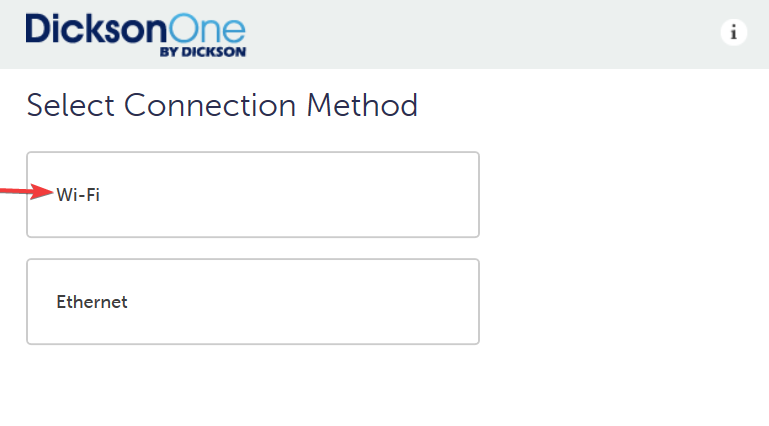
  1. Choose WiFi
  1. DicksonOne devices default to the Ethernet setting. After you have chosen WiFi as your Connection Method your device will reboot.
  1. Scan and choose the appropriate WiFi Network
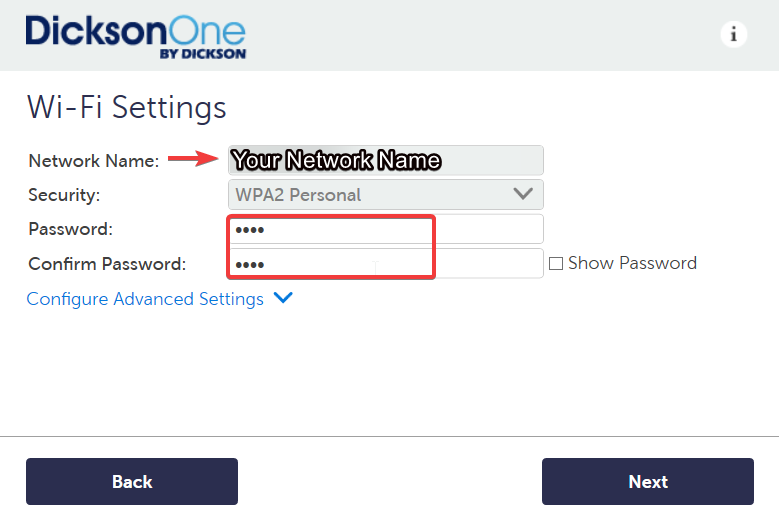
  1. Confirm you have chosen the correct network and security type, enter and confirm your password.
  1. If you are using Firmware version 1.9.0 or newer you will see your data logger go through these steps. Once all three are check marked your device is configured. You can click on the link to register your device.


If you are using any Firmware before version 1.9.0 this is the prompt you will see once your device has connected to your network. Within your DicksonOne account you will click the green Register Device button. Then name the device according to your naming conventions and enter the registration code that appears on the display of your data logger.

Was this article helpful?
Updated on January 16, 2025
Table of Contents
  • About Connecting Devices to WiFi
  • How to Connect Devices to WiFi
    • Configuring WiFi on a Touchscreen Device (TWE/TWP)
    • Configuring a DWE device via the widget:
Dickson Logo

Subscribe to our Newsletter

ADDRESSES

usa flag

USA

930 S Westwood Ave,
Addison, IL, 60101, USA
Phone: (630) 563-4209
Email: supportinfo@dicksondata-debug.freshy.dev

France flag

France

720 rue Louis Lépine,
34000 Montpellier, France
Phone: +33(0)4 99 13 67 30

Malaysia flag

Malaysia

Dickson Unigage Sdn. Bhd.
Wisma LYL, G-02
No. 12. Jalan 51A/223, Section 51A
46100, Petaling Jaya, Selangor
Phone: +60374940758
Email: contact@dicksondata.my

PRODUCTS

  • Data Loggers
  • Accessories
  • Disclaimer

RESOURCES

  • About Us
  • Terms of sale
  • Contact Us
  • Blog
  • Imprint

SOCIAL MEDIA

Facebook

© 2026 Dickson Data. All Rights Reserved.

Privacy - Terms

Manage Consent
To provide the best experiences, we use technologies like cookies to store and/or access device information. Consenting to these technologies will allow us to process data such as browsing behavior or unique IDs on this site. Not consenting or withdrawing consent, may adversely affect certain features and functions.
Functional Always active
The technical storage or access is strictly necessary for the legitimate purpose of enabling the use of a specific service explicitly requested by the subscriber or user, or for the sole purpose of carrying out the transmission of a communication over an electronic communications network.
Preferences
The technical storage or access is necessary for the legitimate purpose of storing preferences that are not requested by the subscriber or user.
Statistics
The technical storage or access that is used exclusively for statistical purposes. The technical storage or access that is used exclusively for anonymous statistical purposes. Without a subpoena, voluntary compliance on the part of your Internet Service Provider, or additional records from a third party, information stored or retrieved for this purpose alone cannot usually be used to identify you.
Marketing
The technical storage or access is required to create user profiles to send advertising, or to track the user on a website or across several websites for similar marketing purposes.
Manage options Manage services Manage {vendor_count} vendors Read more about these purposes
View preferences
{title} {title} {title}
Manage Consent
To provide the best experiences, we use technologies like cookies to store and/or access device information. Consenting to these technologies will allow us to process data such as browsing behavior or unique IDs on this site. Not consenting or withdrawing consent, may adversely affect certain features and functions.
Functional Always active
The technical storage or access is strictly necessary for the legitimate purpose of enabling the use of a specific service explicitly requested by the subscriber or user, or for the sole purpose of carrying out the transmission of a communication over an electronic communications network.
Preferences
The technical storage or access is necessary for the legitimate purpose of storing preferences that are not requested by the subscriber or user.
Statistics
The technical storage or access that is used exclusively for statistical purposes. The technical storage or access that is used exclusively for anonymous statistical purposes. Without a subpoena, voluntary compliance on the part of your Internet Service Provider, or additional records from a third party, information stored or retrieved for this purpose alone cannot usually be used to identify you.
Marketing
The technical storage or access is required to create user profiles to send advertising, or to track the user on a website or across several websites for similar marketing purposes.
Manage options Manage services Manage {vendor_count} vendors Read more about these purposes
View preferences
{title} {title} {title}
0
    Your Cart
    Your cart is emptyReturn to Shop
    Continue Shopping